Just say what you need, and Maps will find it using Gemini. Learn how to add a stop, alternative routes, and arrival information using just your voice
Gemini is coming to Google Maps – By 2026, you’ll be able to talk to the software and control navigation with your voice
You no longer have to take your eyes off the road to change your route, add a stop, or search for something useful nearby.
In 2026, Gemini appears directly in Google Maps and turns navigation into a conversation—whether you’re driving, walking, or biking.
Instead of pressing buttons, you simply say what you need, and Maps does the rest.
The best part is that the assistance isn’t just for directions. You can ask about the route, the estimated time of arrival, report issues along the way, and even find specific locations based on your criteria. And all of this—with your voice.
If you want to learn how to get up to speed with the latest AI smart technologies, read today’s article on Grow Easy all the way through!
How does Gemini work in Google Maps?
Imagine Gemini in Google Maps as a voice assistant that can find information and perform actions within the app while you’re navigating.
Here’s how it works: you ask a question or give a command, and Maps responds in a way that lets you stay focused on the road.
This applies not only while driving, but also when you’re walking or using other modes of transportation. This technological feature proves extremely useful in situations where your phone is in your pocket or on a mount while you’re traveling from point A to point B.
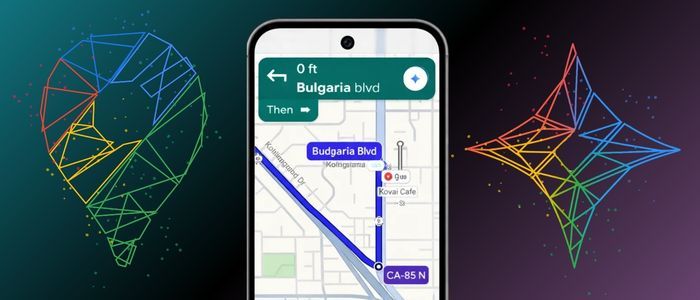
The practical value comes from the fact that Gemini isn’t just a “talking menu,” but a digital navigator that you can customize at any time.
So instead of scrolling through screens, you can say what you’re looking for or what you want to change and let the app do the rest.
For frequent travelers, this saves time, reduces distractions, and makes the journey significantly more predictable and easier to manage.
How do I enable Gemini in Google?
Using Gemini in Maps is designed to be as easy as possible, but there are a few important requirements.
Here’s how to easily enable the AI assistant in Google:
1) Gemini must be running on your phone via the Gemini mobile app. 2) Once you’re in navigation mode in Google Maps, you can activate the assistant by saying “Hey Google” or by tapping the Gemini icon on the screen.
If the voice command isn't working, the issue is usually related to the settings. "Hey Google" and Voice Match must be enabled, as they are linked to voice recognition, which is powered by Gemini.
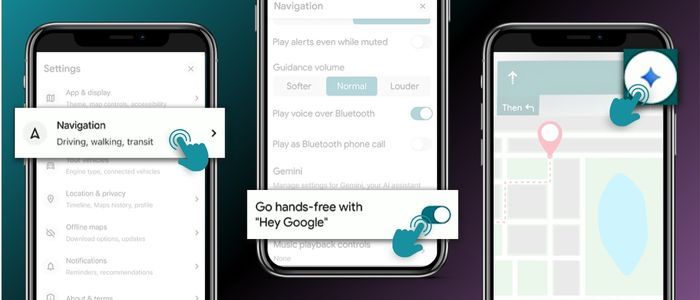
In practical terms, this means that before you rely on this feature while on the road, it’s a good idea to test it for a minute at home.
This way, you’ll be sure that the response is quick, the microphone is working properly, and you can use voice commands without wasting time while driving.
Navigation Commands – Control Your Route Without Touching the Screen
The biggest change you’ll notice right away is control over the navigation itself.
Instead of trying to press tiny buttons while you’re on the go, you simply say what you want to do.
You can start a route with a simple command like “Take me home.” Similarly, you have the option to pause navigation, add a stop, and control the audio.
If you want to optimize your trip, you can simply say “Avoid toll roads” to skip paid sections, or “Show alternative routes” to see other options.
These features are especially useful in an unfamiliar city, during heavy traffic, or when you're riding a bike and any distraction could compromise your safety.
Route Questions: Next Turn, Arrival Time, and Travel Time to Your Destination
Gemini in Maps isn’t just for commands—it’s also for quick route answers, right when you need them.
You can ask, “How many miles until the next turn?” to get your bearings quickly and easily without looking at the map.
You can check how long it will take to arrive if you want to figure out whether you’re running late or will be early.

It’s also helpful that you can ask questions not directly related to the route, such as “What will the weather be like in location X?” This feature is extremely practical when traveling between cities or when arriving in an area with a different climate.
In real life, these advantages of voice navigation may sound like a minor perk, but they’re actually a huge convenience.
The information arrives on time, in a concise format, and you no longer need to look at screens or switch between menus.
Searching and Reporting on the Road – How to Find Places and Report Problems with Just One Phrase
One of Gemini’s most useful features is the ability to combine searches with “along the route” context.
You can ask the AI assistant to find places near you or near your destination, based on specific criteria. For example, “Find a café near location X that serves tiramisu.”
You can then filter the results and add stops directly along your route.
The features don’t stop there. In addition to finding specific locations, you also have convenient “place answers”—you can ask about a specific place or landmark, including details like operating hours (“When does Store X close?”).
Last but not least, you can report issues on the road using voice commands, such as traffic, roadwork, or stranded vehicles.
All of this makes Maps less of a “map” and more of a “travel assistant.”
For more up-to-date news from the world of digital innovation, follow the Grow Easy blog!