
Google updated its image rules. Check your catalogue before the new 500 × 500 pixel minimum takes effect in January 2027.
Poor Images No Longer Stop Your Products Appearing on Google Shopping. What Should You Check in Your Catalogue?
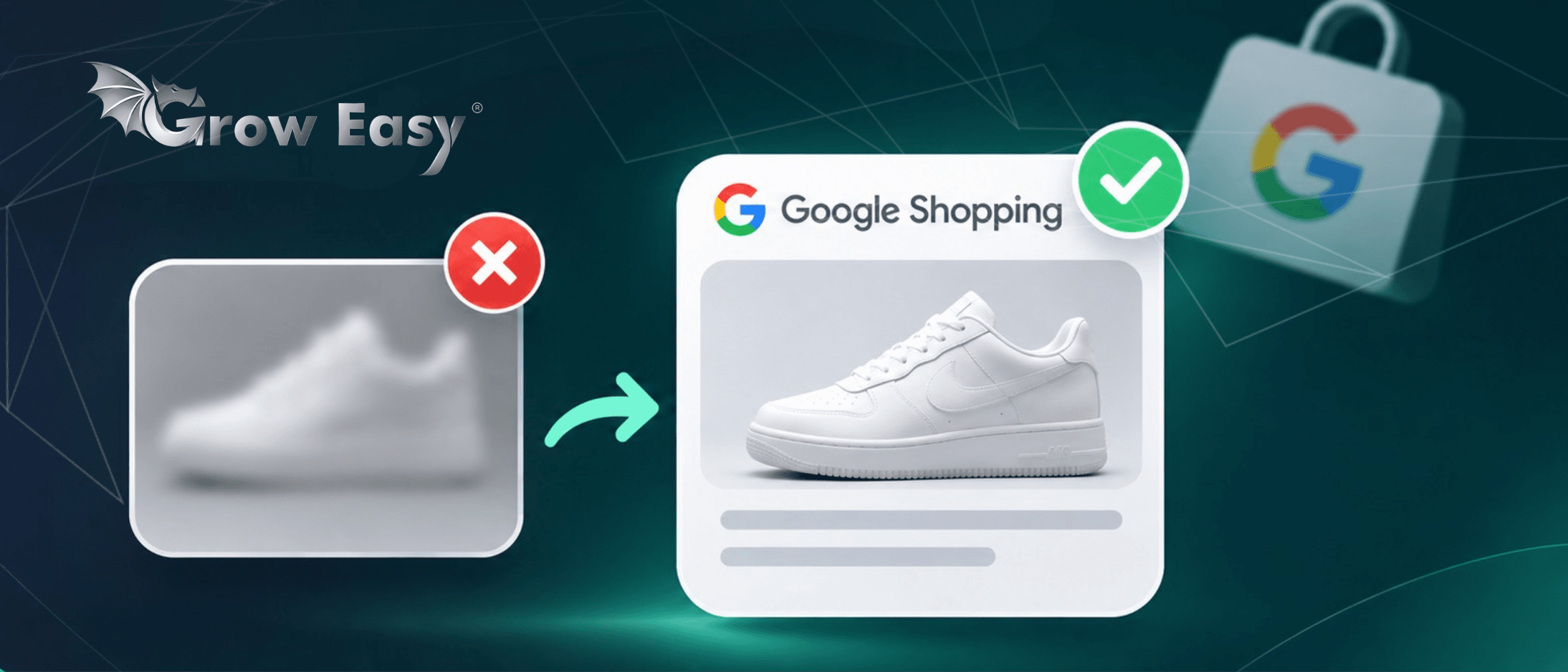
A blurry product image no longer automatically stops your product appearing on Google Shopping because of the low image quality issue.
Google has clarified this in its updated Merchant Center help document. For online retailers, that means fewer restrictions, but an important question remains: will shoppers choose a product they cannot clearly see?
In this article from Grow Easy, we explain what has changed, which requirements still apply and how to prioritise your catalogue review.
What Has Google Actually Changed?
The help page for “Low image quality” now states that affected products will continue to appear in ads and free listings. The issue covers problems such as blurry, pixelated or low-resolution images.
This clarification applies to that specific issue. It does not remove other image requirements or guarantee that every product will appear. An offer can still be disapproved because of another image violation or a separate problem with its product data.
Google also highlights a strong relationship between image quality, engagement and clicks. Continued visibility gives you an opportunity to improve your images while products remain eligible to appear. It does not make those improvements any less worthwhile.
When Does the 500 × 500 Pixel Minimum Take Effect?
Enforcement of the new requirement begins on 31 January 2027. It covers primary and additional product images across all categories and marketing methods included in the Merchant Center specification.
Until then, the general minimum remains 100 × 100 pixels for non-apparel products and 250 × 250 pixels for apparel. Certain formats have separate requirements, including YouTube Shopping ads shown on televisions. Check the warnings in your account rather than assuming one image size works everywhere.
Image Size and Image Quality Are Different
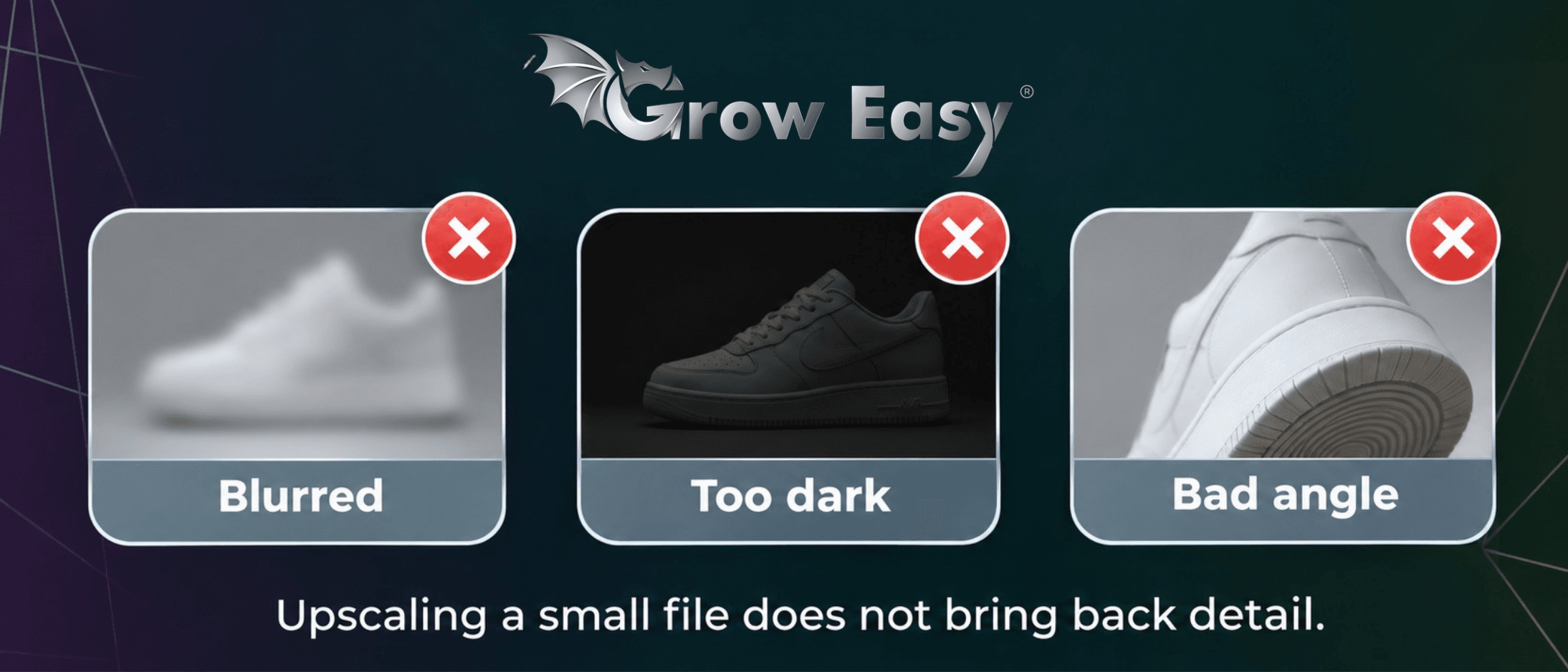
A 500 × 500 pixel image can still be blurry, poorly lit or photographed from an unhelpful angle. Enlarging a small file does not automatically restore missing detail. Look for a higher-resolution original or arrange a new product photograph.
Google recommends images around 1500 × 1500 pixels or larger for better performance across listing formats. This is a recommendation above the minimum requirement and a useful target when preparing new photography.
Start Your Review in Merchant Center
Open the “Needs attention” section and filter for “Low image quality”. Download the affected products so you have a specific list to work through. Separately, check for “Image too small for upcoming enforcement” warnings relating to the upcoming size requirement.
Create a spreadsheet containing each product ID, image URL, dimensions, issue and person responsible for fixing it. Add a deadline and completion status. This turns a catalogue review into manageable work, even when your store carries thousands of items.
Do not rely entirely on warnings. Review a sample of approved products on your phone. Can you identify the item and its variant immediately? An image can meet the requirements while still leaving shoppers unsure about what they are buying.
Which Products Should You Fix First?
Start with bestsellers, but also include in-stock products already receiving substantial impressions or advertising spend. These deserve early attention. A product with few sales may still be important if it attracts interest but its presentation leaves questions unanswered.
A practical order is:
- Resolve issues that actually prevent products from appearing.
- Improve unclear images for commercially important products.
- Prepare the remaining images that fall below the upcoming minimum.
Consider stock levels, margins and seasonal demand when setting priorities. In Google Ads campaign management, image quality should be reviewed alongside product performance. Increasing the budget is unlikely to solve an offer that shoppers struggle to understand at first glance.
What Should You Check in Every Product Image?
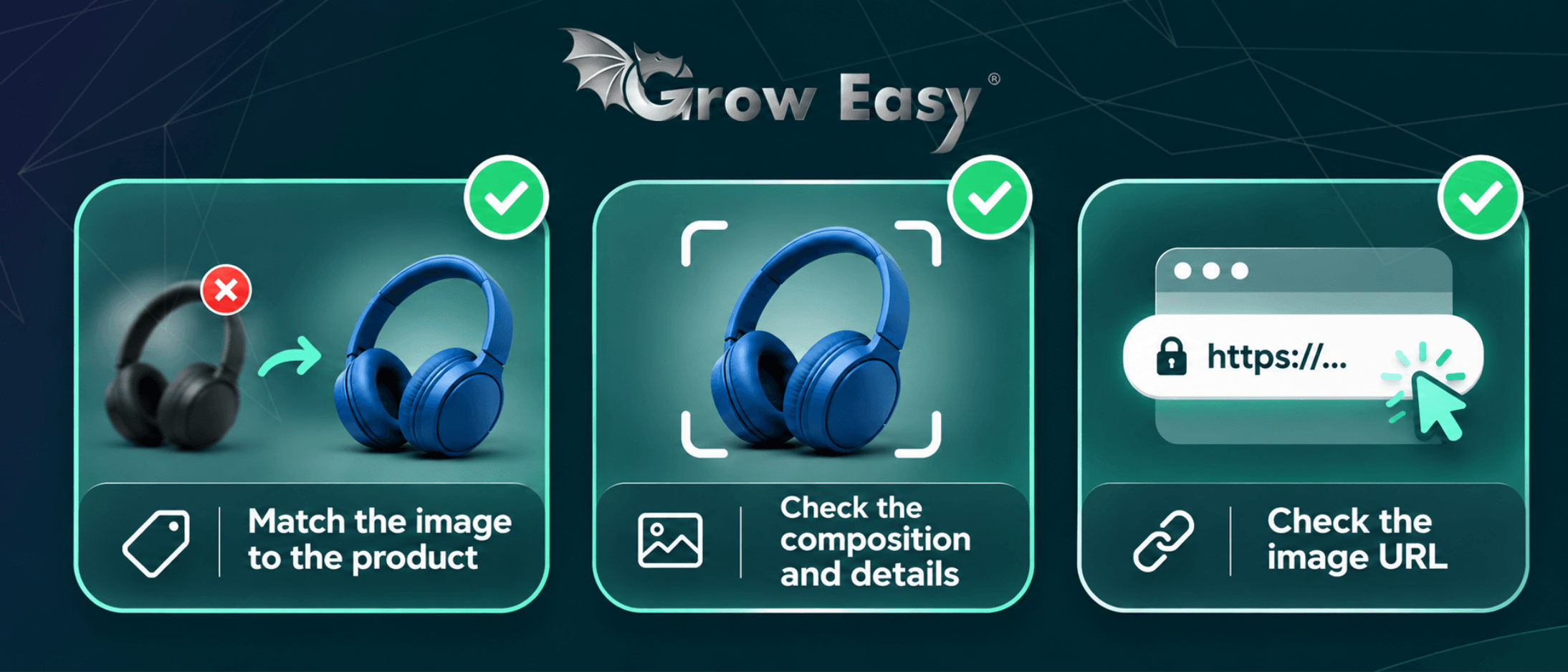
First, confirm that the image matches the exact item for sale. If the listing is for a blue model, the main photograph should show that version. The same principle applies to pack sizes, bundles and finishes. A mismatch creates confusion before someone even visits your website.
Next, review the composition. Is the product fully visible? Can shoppers see relevant details? Does the background distract from it? Remove added promotional overlays advertising discounts, delivery or prices. The main image should clearly show what the customer will receive.
Check the Image URL Too
Open the image URL submitted to Merchant Center. It should lead to an accessible image, rather than a webpage, login screen or error. Ask your developer to check whether website security settings block Googlebot or Googlebot-Image.
Also check which file your integration submits: the original photograph or a small thumbnail. Sometimes the store already has suitable photography but sends Google the wrong version. In that situation, correcting the product data settings may resolve the problem without another photoshoot.
How Do You Update Images and Measure the Results?
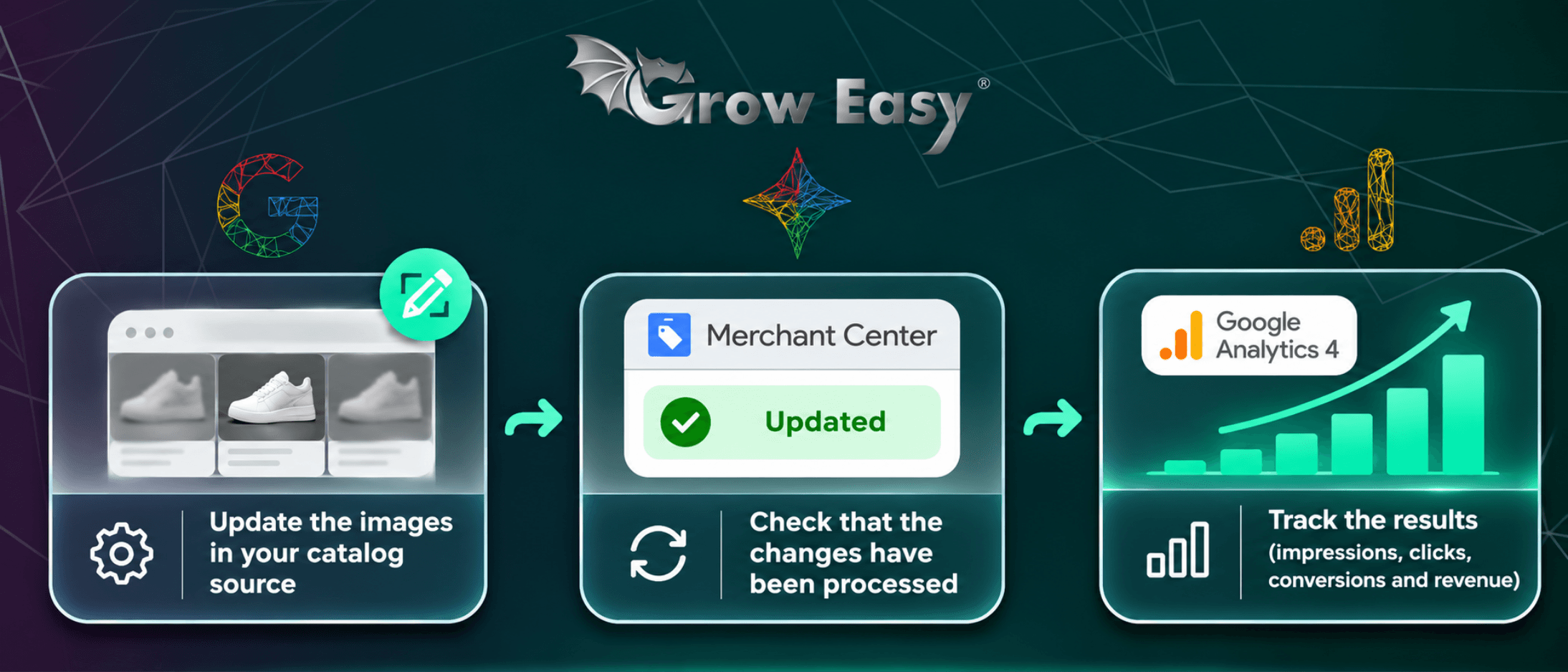
Make corrections in the source that supplies your catalogue. If your store synchronises product data automatically, a manual edit in Merchant Center may be overwritten during the next update. Establish where primary and additional images are managed before making changes.
After submitting replacements, check whether the new files have been processed and the relevant warnings have disappeared. Updates are not always immediate. Record the change date so you can compare performance before and after the replacement.
Monitor impressions, clicks and click-through rate. Use correctly configured Google Analytics 4 to follow purchases and their value. Compare similar periods and account for changes in prices, budgets and promotions. An improvement after replacing a photograph does not prove that the photograph alone caused it.
Give Your Products a Better First Impression
The Merchant Center clarification gives you room to improve images without the specific low-quality issue necessarily interrupting visibility. Use that opportunity: identify affected products, prioritise the important images and prepare your catalogue before 31 January 2027.
If you want to connect product data improvements with advertising results, get in touch with us.
At Grow Easy, we will discuss where your catalogue and campaigns need attention and help you decide which next steps deserve priority!